CrystalGraphics

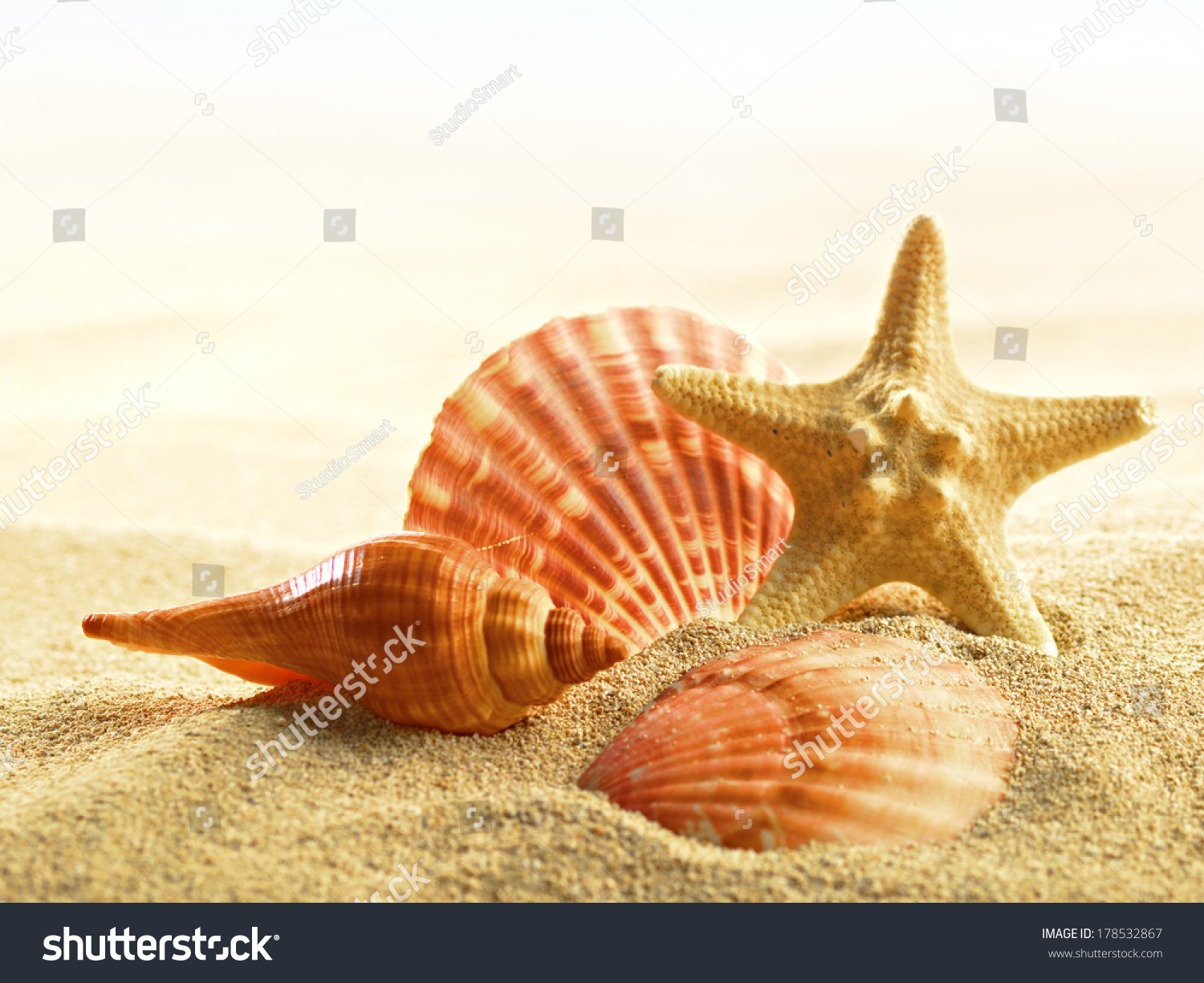
Featuring Shells and Starfish on Sandy Beach
Includes the high-resolution background image visible below:


Customize Template
Select an element to customize:
Design options
Title slide options
Background options
Title Slide Options
Click to select the title slide's new title position.


Your Title
Will display here
Background Options
Design Options
Click on a title slide below to select a new template design.


Design [designid]
Design [designid]
Design [designid]
Design [designid]
Design [designid]
Design [designid]
Design [designid]
Design [designid]
Design [designid]
Design [designid]
Design [designid]
Design [designid]
Design [designid]
Design [designid]
Design [designid]
Design [designid]
Design [designid]
Design [designid]
Design [designid]
Design [designid]
Design [designid]
Design [designid]
This template's foreground design is customizable. Here's how...
Includes the 64 slide layouts below. (Scroll to view. Click on thumbnail images to enlarge.):
Purchased templates are free of all promotional text and watermarks.
Corner Title Template Design featuring shells and starfish on sandy beach
Premium Template for PowerPoint & Google Slides
Imagine a vibrant and sun kissed destination where palm trees sway gently in the breeze, and crystal clear waters sparkle like diamonds. This is the idyllic Cancun, Mexico, beckoning you to escape to its warm and welcoming shores. The Corner Title template, featuring a coral inspired color palette, will transport you to this tropical paradise. Widescreen format ensures an immersive experience, while high resolution images for the background will bring the sun kissed beaches and crystal clear waters to life. The template is downloadable and compatible with Google Slides, making it easy to import into your presentation. As inspiration draws from the beauty of Cancun, we've created a design that embodies the carefree spirit of this Mexican Caribbean gem. Shells and starfish on sandy beach are just a few features that will make you feel like you're strolling along the shoreline, soaking up the sunshine. The template's theme is centered around enhancing your presentation with a beautiful coral background that sets the tone for an engaging and visually stunning slide. The layout of this template is designed to guide you through the process of creating a captivating presentation. Four How To slides at the start will help get you up and running quickly, ensuring your audience is well prepared before diving into the main content. With the In Summary Layout slide serving as a valuable anchor for your deck, you'll have everything needed to craft a clear and compelling narrative that leaves a lasting impression. As an example, this template could be used to create a visually appealing title slide featuring a stunning image of a Cancun sunset with palm trees swaying in the breeze. The coral background would provide a beautiful contrast against the warm tones of the sky, setting the tone for an engaging and memorable presentation.
▼Key features of this template
They are compatible with both PowerPoint and Google Slides running on either Windows PCs or Macs.
-
They are available in both standard and widescreen slide formats. You can choose your preferred format by clicking on the "Widescreen" check box or icon.
-
Each template includes a beautiful high-resolution background image or video to visually reinforce the theme of your presentation.
In addition, each template includes designer-created graphics and modern fonts to give your presentations an up-to-date, professional look.
Each template's default design and title text position have been carefully selected to complement its background without covering faces or other key elements.
All text includes backdrops whose transparency level is mathematically calculated to maximize text readability while still allowing the background to be seen.
-
And all the text, text backdrops and graphics in every slide are colored with a palette designed to beautifully complement the colors in the background.
-
Our Premium templates (those with the descriptor “Premium” in their subtitle) include over 64 slide layouts to give you maximum flexibility as you create your presentations.
- Those layouts are available to you whenever you create a new slide or when you want to change the layout of an existing slide.
- They include everything you need to make all sorts of presentations. In addition to the layouts for the title slide and the usual title and content slide, they include many other layouts for slide types including table of contents slides, org charts, charts, diagrams, infographics, photo slides, thank you slides and more.
- While creating these layouts our template designers have ensured that all text in every layout adjusts as gracefully as possible to various numbers of words.
Customizable templates (those with the descriptor “Customizable” in their subtitle) may be easily modified online before you download them.
- To modify them, simply click on the pencil editing icon, then select your choice of ready to go designs and title text positions.
- The editing tool also makes it easy to reposition and scale the background image or video to best suit your needs.
▼FAQs
Please review these FAQs to see if your question is answered. Contact us for more info
-
What is a PowerPoint template?
- A well designed PowerPoint template is a file that can tell PowerPoint how to make your ordinary templates look extraordinary. They won’t change what your words or numbers say. But they might change their size, color, font and placement. And, overall, they can give your presentations a professionally-designed look that will give your content more credibility and give you more confidence.
-
How many PowerPoint templates do you offer?
- We have over 32,000 artist-created presentation templates in our PowerPlugs collection With a subscription, PowerPlugs templates are easy to download. Just sign in, find a template and click on the green Download button. ready for you to download. That alone offers you more variety to choose from than any of our competitors can offer. And, as if that weren’t enough, we also offer over 6 million templates in our Crystal collection. Crystal brand templates are our line of templates that have customization options. They have the word "CRYSTAL" on their web page images. You can customize several aspects of the templates. These templates include high-resolution background images from Shutterstock’s vast image collection matched up with artist-created presentation designs customized by our own proprietary AI software.
-
How many templates can I download as a subscriber?
- You can download an unlimited number of PowerPlugs-brand With a subscription, PowerPlugs templates are easy to download. Just sign in, find a template and click on the green Download button. templates every day for an entire year. (Actually, by default, we set a limit of 25 templates per day to prevent our competitors from stealing our templates. But, if that is not enough, just let us know and we’ll try to accommodate you.) On top of that, with a subscription or an Ultimate Combo, you can also download any 50 Crystal-brand Crystal brand templates are our line of templates that have customization options. They have the word "CRYSTAL" on their web page images. You can customize several aspects of the templates. templates per year selected from our huge Crystal collection. Crystal brand templates are our line of templates that have customization options. They have the word "CRYSTAL" on their web page images. You can customize several aspects of the templates. .
-
Why should I choose your templates instead of the competition’s?
- We’ve got a larger selection of professionally-designed PowerPoint templates than anyone else in the world.
- Each template includes a high-resolution background image or video to visually inspire your audiences while reinforcing your message.
- Each template includes 64 slide layouts to give you maximum flexibility as you create your presentations.
- Our templates are available in both standard and widescreen slide formats. And our website lets you preview the slides each way.
- Our free Template Finder™ plugin lets subscribers select and - with a single click - download and insert our templates into their presentations right from within PowerPoint.
- We’ve been creating designer presentation templates for over 20 years. During that time we’ve won several awards and 5-star ratings for product quality. See About Us for more.
-
Do you offer a money-back guarantee?
- Yes we do! We offer full 30-day money-back guarantee if you are not 100% satisfied with your purchase.
-
Can I still use my downloaded templates after my subscription runs out?
- Yes. After your subscription expires, you won't lose any rights or ability to use your PowerPlugs: Templates for PowerPoint. You won't be able to download any new non-watermarked templates. But the non-watermarked templates you've already downloaded will still work and you can still use them as before.
-
Can I share my downloaded templates or passwords with friends or coworkers?
- Sorry but no. You are authorized to download each paid-for template to up to 3 of your personal devices and to use the templates you download in as many presentations as you want. But you are not authorized to share the templates, themselves, with others. That said, we do offer highly discounted site licenses to suit the needs of both small and large teams. Just tell us your needs and we’ll give you a quote!
-
System requirements:
- The templates use the standard POTX format. So they are compatible with Google Slides and all PC, Mac and mobile devices running any version of PowerPoint from PowerPoint 2007 up through and including Office 365 desktop.
- Please note: Google Slides does not currently support background videos. It treats them as still images.
- For PowerPoint for the Web, first open your template into a desktop version of PowerPoint, then save it back out as a PPTX file. Then you can open that in PowerPoint for the Web.
-
End user license agreement:
-
How will I get my purchased templates?
- You may download your selected templates as soon as your payment is received by PayPal. If you purchased an individual template, you will be provided with a download link both onscreen and via email. Just click on that link to begin the download process. If you purchased a subscription, you will receive an email containing a password to use along with your email address to sign in to any of the templates pages on CrystalGraphics.com. Once you are signed in, you can immediately start downloading your selected templates.
-
How do I use my templates after I download them?
- You can either open a template to start a new presentation or you can add a template to an existing presentation. To open a template, just double click on it or use PowerPoint's File > Open tool. To add a template to an existing presentation, on the Design tab, in the Themes group, click Browse for Themes... then browse to select your template.